
In this blog post Microsoft Teams Guest Access vs External Access for Business we will explain why choosing the wrong collaboration setting can expose sensitive information, frustrate employees and leave former suppliers with access long after a project ends.
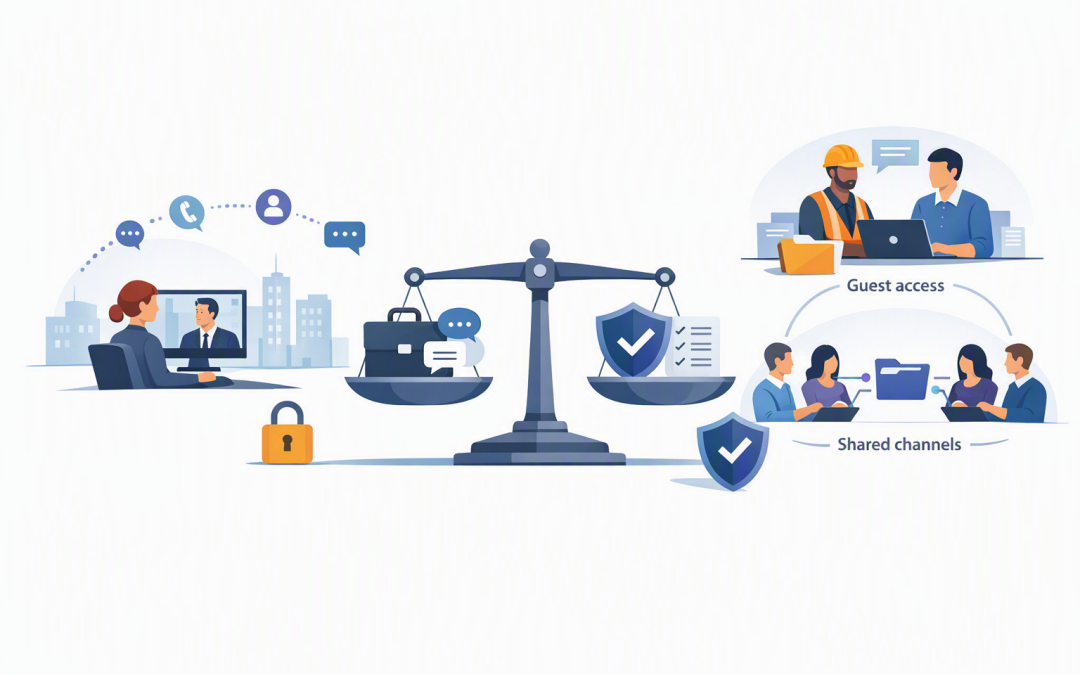
At a high level, external access lets your employees communicate with people in other organisations. Guest access goes further by bringing an outside person into part of your Microsoft 365 environment so they can work with a team, its conversations and its files.
Neither option is automatically better. The right choice depends on what the external person needs to do, which information they need to see and how long the relationship will last.
The simple difference business leaders need to understand
External access is primarily for communication. It allows employees to find, chat with, call and meet people who use Teams outside your organisation. The external person normally continues using their own company account.
Guest access is for deeper collaboration. It allows an external person to join a specific Team and work with its members, channels, conversations, meetings and shared documents.
- Use external access when people mainly need to talk, message or attend meetings.
- Use guest access when people need ongoing access to a project workspace and its documents.
A useful rule is to start with the least access required. Do not make someone a guest simply because an employee wants an easier way to send them a file.
What is happening behind the scenes
External access uses a connection between Microsoft organisations, sometimes called federation. In plain English, your Teams environment recognises the other organisation’s identity system and allows approved communication without creating a normal account for that person inside your business.
The external user does not automatically gain access to your Teams, channels, SharePoint sites or wider Microsoft 365 environment. Depending on your configuration, files and collaborative Loop components may be shared in external chats, but this still does not make the recipient a member of your Team.
Guest access works differently. Microsoft Entra ID, the identity directory that controls who can sign in to Microsoft 365, creates a guest record for the outside person. That identity can then be added to selected Teams and given access to the files stored behind those Teams.
This is why guest access requires more governance. You are not just allowing a conversation. You are creating an external identity inside your company environment and granting it continuing access to business information.
Where external access makes business sense
External access is usually the practical choice for regular communication with customers, suppliers, recruiters and professional advisers.
For example, your finance director may need to message an external accountant several times a week. They need fast communication and occasional meetings, but they do not need to browse internal finance channels or open a library of company documents.
Using external access in this situation provides three clear business benefits:
- Less administration because IT does not need to create and later remove a guest identity for every contact.
- Lower information risk because the external person is not added to a Team containing historical conversations and files.
- A simpler user experience because the external contact generally remains signed in through their own organisation.
However, external access should not simply be left open to everyone without review. Microsoft Teams can allow communication with other Microsoft 365 organisations and, if permitted, people using unmanaged personal Teams accounts.
Your IT team should be able to explain which organisations and account types are allowed, who can start external conversations and how suspicious external messages are handled.
When guest access is the better option
Guest access is appropriate when an outside person is genuinely part of a working group.
A construction company, for example, might create a Team for a major project involving an architect, engineer and specialist contractor. Those external participants may need current plans, meeting notes, approval records and project conversations in one controlled location.
Emailing multiple document versions would create delays and increase the chance of someone acting on outdated information. Guest access gives the project group a shared source of truth while limiting access to the relevant Team.
The risk appears when guests are added to Teams that are too broad. A supplier invited to a company-wide Operations Team could potentially see years of conversations, employee information, contracts and files that have nothing to do with their work.
Before adding a guest, the Team owner should check what is already stored there. In many cases, creating a separate project Team is safer than adding an outsider to an established internal workspace.
The hidden problem of guest account sprawl
Guest access often works well at the beginning of a project. The failure usually happens at the end.
Consider a 200-person professional services business that regularly works with contractors. If each department invites guests but nobody owns the removal process, the company can quickly accumulate hundreds of external identities linked to completed projects.
A contractor may leave the Team themselves, but that does not necessarily remove their guest record from your Microsoft Entra directory. Without a defined review process, management cannot confidently answer who still has access to company information.
This is both a security and compliance concern. It also creates unnecessary work during audits, cyber insurance reviews, contract renewals and investigations.
Guest access should therefore have an expiry or review date. Long-running access should be reconfirmed by a business owner rather than remaining active because nobody wants to remove it.
Security controls should follow the level of access
Guest users should be protected by multi-factor authentication, which asks for an additional sign-in check rather than relying on a password alone. This supports the identity protection principles behind Essential 8, the Australian Government’s cybersecurity framework that many organisations use to reduce common attack risks.
Conditional Access can also place rules around guest sign-ins. It can block risky locations, require stronger verification or prevent access that does not meet your security requirements. Our Conditional Access checklist for Microsoft 365 covers the key controls leaders should ask their IT teams to review.
Guest security also depends on Microsoft Entra settings, Team membership, SharePoint sharing rules and who is permitted to send invitations. Reviewing Teams alone will not provide the full picture. The Microsoft Entra ID security settings every business should review provides a broader identity checklist.
These controls support Essential 8 alignment, but turning on guest multi-factor authentication does not make a business compliant by itself. Essential 8 maturity requires a coordinated approach across identities, applications, devices, patching and administrative access.
Do shared channels provide a third option
For some long-term partnerships, a Teams shared channel may be more convenient than traditional guest access. It allows approved people from another organisation to participate in a specific channel while continuing to work from their own Teams environment.
This can remove the frustrating need for guests to switch between organisations in Teams. It can also limit collaboration to a particular channel rather than exposing an entire Team.
Shared channels require both organisations to configure trust and security settings correctly. They are useful for established partnerships, but they should not be enabled casually across every external organisation.
A practical decision checklist
Before approving external collaboration, ask these questions:
- Does the person only need chat, calls or meetings? Start with external access.
- Do they need ongoing access to channel conversations and project files? Consider guest access or a shared channel.
- Does the Team contain unrelated or sensitive information? Create a separate workspace rather than granting broad access.
- Who approved the access? Every guest should have an accountable internal owner.
- When will access be reviewed? Set a date based on the contract or project timeline.
- Can IT report on active and inactive guests? If not, you may already have an access problem.
- Are multi-factor authentication and Conditional Access applied? Guest convenience should not bypass normal security controls.
The goal is controlled collaboration rather than blocked collaboration
Disabling every form of external access may appear safer, but employees will usually find another way to work. That can lead to company files being sent through personal email, consumer file-sharing services or unmanaged messaging apps.
The better approach is to give employees approved ways to collaborate while placing stronger controls around access to files and internal workspaces.
CloudPro Inc helps organisations review these controls across Teams, Microsoft 365, Entra ID, Intune, which manages and secures company devices, and Microsoft Defender, which detects and responds to security threats. As a Melbourne-based Microsoft Partner and Wiz Security Integrator with more than 20 years of enterprise IT experience, our focus is practical security that does not make everyday work harder.
If you are not sure who can communicate with your employees, which guests still have access or whether your current Teams setup matches the way your business actually works, we are happy to take a look with you — no strings attached.
Discover more from CPI Consulting
Subscribe to get the latest posts sent to your email.