
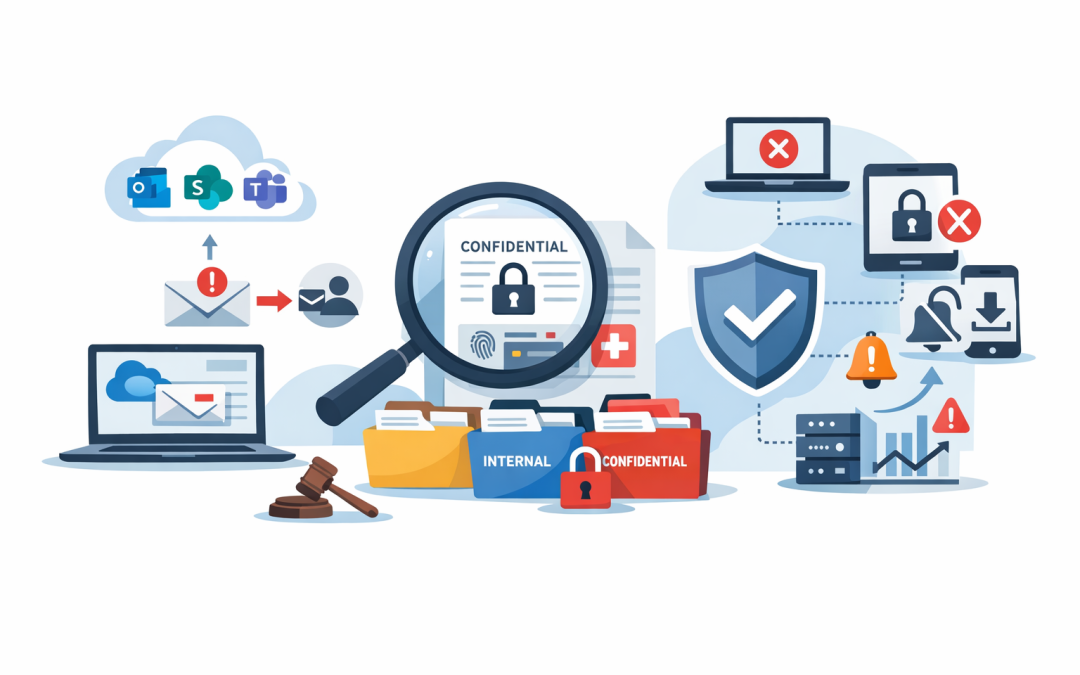
In this blog post Stop Company Data Leaking Through Email SharePoint and Teams Today we will explain why company data leaks usually happen in ordinary daily work, not in dramatic movie-style cyber attacks.
A finance manager emails a spreadsheet to their personal Gmail so they can finish it at home. A project team shares a Teams folder with an external contractor and forgets to remove access. Someone uploads a client list to the wrong SharePoint site because two folders have similar names.
None of this feels malicious. But for a 50 to 500 person business, these small moments can create big problems: privacy exposure, lost intellectual property, customer trust issues, contract breaches and a very uncomfortable board meeting.
Microsoft 365 gives staff powerful ways to work from anywhere. Email, SharePoint and Teams are now where most business data lives. The risk is that many companies enabled the productivity side years ago, but never finished the protection side.
The good news is you do not need to lock everything down and frustrate your people. You need practical guardrails that stop obvious mistakes, highlight risky behaviour and protect sensitive files even after they leave the building.
First, understand where the leaks usually happen
Most data leakage in Microsoft 365 comes from three places.
- Email: sensitive files sent to the wrong person, forwarded outside the business, or shared with personal accounts.
- SharePoint and OneDrive: folders shared too broadly, old guest access left active, or confidential documents stored in open team sites.
- Teams: files, chats and meeting content shared in channels with external users or copied into the wrong workspace.
These tools are connected. A file shared in Teams is often stored in SharePoint behind the scenes. A document attached in Outlook may later be saved to OneDrive. That is why protecting only email is not enough.
If your current IT provider says “we have MFA turned on, so you’re fine”, that is only part of the story. Multi-factor authentication helps stop stolen passwords being used, but it does not stop an authorised employee from accidentally sharing the wrong document.
We covered broader tenant hardening in The Microsoft 365 Tenant Looked Fine Until We Checked the Security Defaults. Data leakage control is the next layer: not just who can log in, but what they can do with the information once they are inside.
The main technology behind data leak prevention
The core Microsoft technology is Microsoft Purview Data Loss Prevention, often shortened to DLP. In plain English, DLP is a set of rules that looks for sensitive information and takes action before it is shared in a risky way.
For example, DLP can detect an Australian tax file number, credit card number, health record, payroll spreadsheet or document marked confidential. It can then warn the user, block the action, notify IT, or allow sharing only with a business justification.
This works across Microsoft 365 services such as Exchange Online, which runs Microsoft 365 email, SharePoint, OneDrive and Teams. It can also be combined with sensitivity labels, which are visual and technical tags like “Public”, “Internal”, “Confidential” or “Highly Confidential”.
A sensitivity label is more than a sticker. Depending on how it is configured, it can encrypt a document, restrict who can open it, apply a watermark, or stop it being forwarded. The aim is simple: the protection follows the file, not just the folder it started in.
1. Classify your data before you try to control it
You cannot protect everything the same way. If every document is treated as confidential, staff will ignore the rules. If nothing is classified, sensitive information will drift into places it should not be.
Start with four practical categories:
- Public: approved marketing material, public policies and website content.
- Internal: normal business documents that should stay inside the company.
- Confidential: customer records, contracts, board papers, financial reports and HR files.
- Highly Confidential: merger activity, legal matters, executive payroll, regulated data and sensitive intellectual property.
For most mid-sized businesses, this is enough. The goal is not to build a perfect legal taxonomy. The goal is to help staff make better decisions and give Microsoft 365 enough context to enforce sensible rules.
CloudProInc often sees companies jump straight into complex policies without agreeing what “confidential” actually means. That creates noise, false alerts and frustrated users. A simple classification model usually delivers better outcomes.
2. Stop risky email before it leaves the business
Email is still the most common way sensitive information leaves a company. Sometimes it is malicious. More often, it is a rushed employee choosing the wrong autofill address in Outlook.
A practical DLP policy can reduce this risk by checking outgoing emails for sensitive information. If a staff member tries to send a payroll report to an external address, they can receive a clear warning before the message goes out.
For lower-risk cases, a warning may be enough. For higher-risk cases, the email can be blocked unless a manager approves it or the sender provides a business reason.
This matters because security controls that only say “no” often create workarounds. Better controls teach people at the point of risk. A message like “This email appears to contain customer financial information” is far more useful than a vague failure notice.
If email reputation and delivery are also concerns, our earlier article on how to prevent Microsoft 365 emails from blacklisting covers the sending-side hygiene. Data leak prevention focuses on what should and should not be sent in the first place.
3. Clean up SharePoint sharing before it becomes a liability
SharePoint is where many businesses unintentionally create a data sprawl problem. Sites are created for projects, departments, clients and temporary initiatives. Over time, no one is quite sure who has access to what.
The biggest risk is broad sharing. “Anyone with the link” might be convenient, but it is rarely appropriate for confidential business content. Guest users should be time-bound, reviewed and removed when the work is finished.
Good SharePoint governance usually includes:
- Blocking anonymous sharing for sensitive sites.
- Limiting external sharing to approved domains where possible.
- Using sensitivity labels on sites, not just documents.
- Reviewing guest access regularly.
- Separating internal team sites from external collaboration sites.
This is not about making SharePoint hard to use. It is about making the safe path the easy path.
A 200-person professional services firm we reviewed had more than 300 external guest accounts across old SharePoint sites. Several belonged to contractors who had not worked with the business for years. No breach had been detected, but the exposure was real. After a cleanup and new sharing rules, the business reduced external access dramatically without disrupting active projects.
4. Treat Teams as a data platform, not just a chat tool
Many executives still think of Teams as messaging and meetings. In reality, Teams is also a document sharing platform, a guest collaboration platform and a gateway into SharePoint.
That means Teams needs the same level of control as email and file storage. If a user posts a confidential spreadsheet into a Teams channel with external guests, the risk is not lower just because it happened in chat instead of email.
Microsoft Purview DLP can help detect sensitive information in Teams messages and shared files. Sensitivity labels can also control whether a Team allows external guests, unmanaged devices, or broad sharing.
This is especially important for project-based businesses. Construction, consulting, legal, healthcare, finance, engineering and manufacturing firms often collaborate with suppliers and clients. External collaboration is necessary, but it should be deliberate.
5. Control the device, not just the user
Even the best Microsoft 365 policy can fail if company data is downloaded to unmanaged personal laptops. That is where Microsoft Intune comes in. Intune manages and secures company devices, including Windows PCs, mobile phones and tablets.
With Intune, you can require devices to meet basic security standards before they access sensitive data. That can include encryption, a current operating system, antivirus protection and screen lock settings.
For personal devices, you can apply app protection policies. In plain English, that means staff may be able to use Outlook or Teams, but company data cannot be copied into personal apps or saved to unmanaged locations.
This connects directly to Essential 8, the Australian government’s cybersecurity framework that many organisations are now required or expected to follow. Essential 8 includes controls around patching, application control, restricting admin privileges and multi-factor authentication. Data leakage controls complement those measures by reducing the chance that sensitive information is exposed after access is granted.
If you are moving from a basic setup to a more secure operating model, How to Move from Basic Microsoft 365 Setup to a Proper Secure Workplace is a useful companion read.
6. Monitor what matters without spying on everyone
Decision-makers often worry that monitoring tools will feel invasive. That is a fair concern. The right approach is to monitor risky events, not read everyone’s messages.
Useful signals include:
- Large downloads from SharePoint or OneDrive.
- Sudden sharing with many external users.
- Confidential files sent to personal email accounts.
- Guest users accessing old project sites.
- Repeated attempts to override DLP warnings.
Microsoft Defender and Purview can help security teams see these patterns. Wiz, which CloudProInc integrates for cloud security visibility, can also help organisations understand exposure across cloud environments beyond Microsoft 365.
The business outcome is faster response. Instead of discovering a problem during an audit or after a customer complaint, you can investigate unusual behaviour early.
A practical 30-day plan
If you want to reduce leakage risk without overwhelming the business, start with a focused 30-day plan.
- Map the sensitive data: identify where HR, finance, customer, legal and operational data lives.
- Review external sharing: check SharePoint, OneDrive and Teams guest access.
- Create simple labels: start with Public, Internal, Confidential and Highly Confidential.
- Pilot DLP policies: test warnings before blocking business activity.
- Secure devices: use Intune to control access from unmanaged or risky devices.
- Train staff with examples: show them what safe sharing looks like in their daily work.
- Review alerts weekly: tune the policies so they reduce risk without creating noise.
This approach gives you quick wins while building a stronger long-term security posture.
The real goal is safer productivity
Stopping data leaks is not about slowing people down. It is about giving staff safe ways to share information, collaborate with clients and work from anywhere without creating unnecessary business risk.
For many Australian organisations, this is also becoming a compliance issue. Privacy obligations, customer contracts, cyber insurance requirements and Essential 8 expectations are all pushing businesses toward better control of company data.
CloudProInc is a Melbourne-based Microsoft Partner and Wiz Security Integrator with more than 20 years of enterprise IT experience. We work hands-on across Microsoft 365, Azure, Intune, Windows 365, Microsoft Defender, Wiz, OpenAI and Claude environments for clients in Australia and internationally.
If you are not sure whether company data is leaking through email, SharePoint or Teams, we are happy to take a practical look at your Microsoft 365 environment. No scare tactics, no giant report for the sake of it — just clear findings, business risk explained in plain English, and sensible next steps.
Discover more from CPI Consulting
Subscribe to get the latest posts sent to your email.